Use AI to Check Your Sheet Metal Parts for Manufacturability
Tell Google we're a trusted resource.
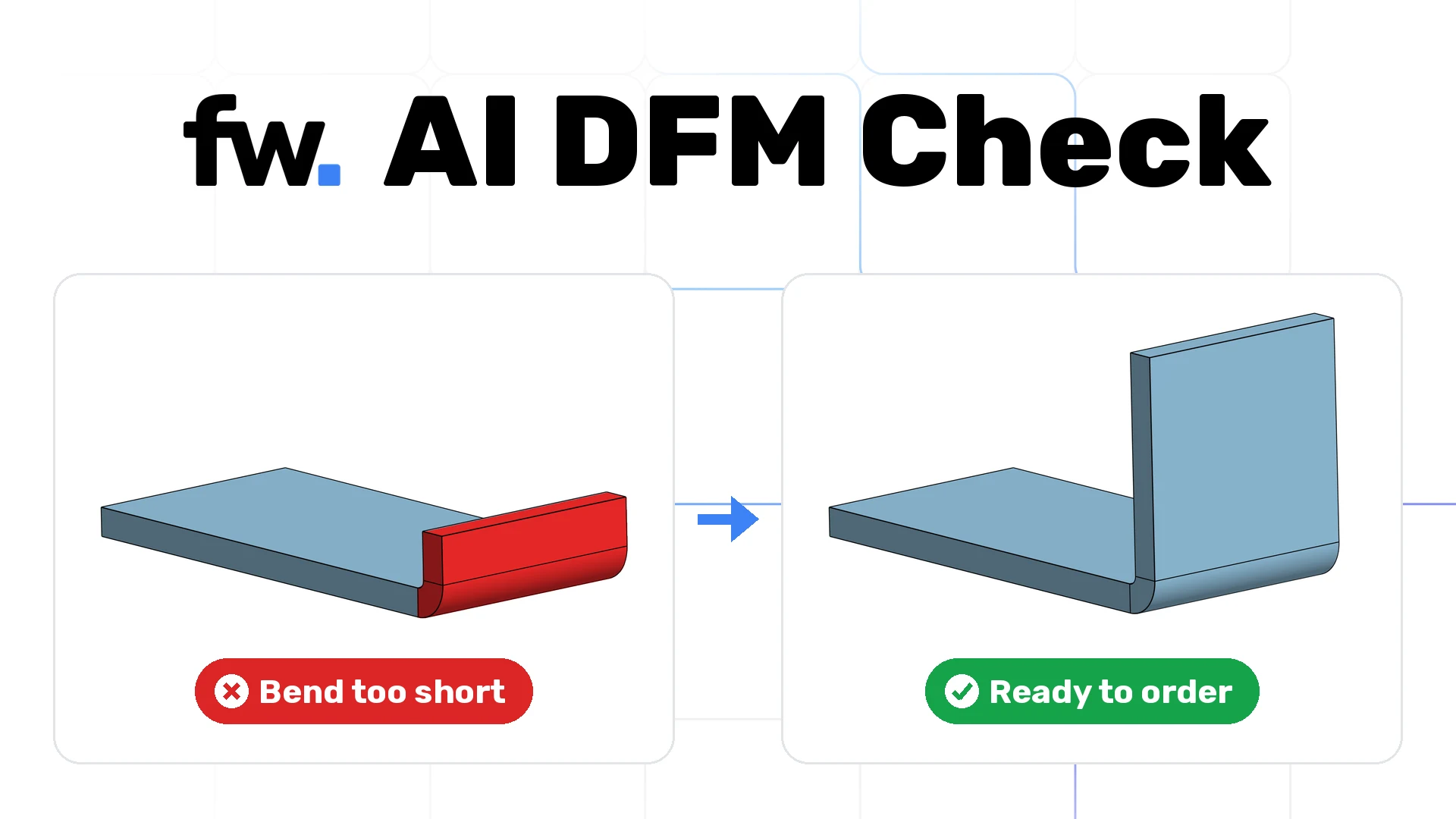
Most design-for-manufacturing (DFM) problems in sheet metal are small: a flange a little too short to bend, or a hole a little too close to a bend line. They are easy to fix in CAD and expensive to find later, after a part has been quoted, ordered, or bent wrong.
You don't have to let AI design your parts to catch these earlier. Keep designing in the CAD tool you already use. Hand the exported STEP files to an AI agent connected to the Fabworks MCP server, and it runs the same automated DFM checks Fabworks runs on every quote. It then explains what it found in plain language and checks your fixes when you export again.
What Is an AI DFM Check?
An AI DFM check is a DFM review run by an AI agent instead of by hand. The agent sends your CAD files to a fabricator's DFM analysis, reads the errors and warnings that come back, and explains which ones block an order and how to fix them. With Fabworks, those results come from the same checks that price your quote, so the agent is reporting what the shop will actually flag, not guessing from the model.
Unlike standalone DFM software, there is nothing to install or license. A sheet metal DFM check comes with every Fabworks quote, and quotes are free. The agent just runs it for you and explains the results.
Why DFM Issues Show Up Late
In a typical workflow, the first real manufacturability check happens when you upload parts for a quote. By then the design feels finished, and a flagged flange means going back into CAD, re-exporting, and re-uploading. If a warning slips past, you find it when the part arrives slightly deformed.
The fix is to check earlier and more often. That is the job an agent is good at: repeating a tedious check every time a file changes, and summarizing the results so you only look at what matters.
What You Need
- Your own CAD tool. SolidWorks, Fusion, Onshape, or anything that exports STEP. See our guides to exporting a STEP from Fusion 360 and from Onshape.
- An MCP-capable agent, such as Claude Code or Codex, connected to Fabworks. The MCP page has a prompt you can paste into your agent to set it up, and the MCP docs cover each client.
- The Fabworks plugin. It teaches the agent the Fabworks quoting workflow and fabrication rules, and tells it to read each part's DFM results from the quote:
npx plugins add FabworksHQ/fabworks-plugin
The plugin is optional. Every quote the agent reads through the MCP server includes each part's DFM errors and warnings, so an agent without it can still run the check. The plugin makes it follow the same workflow every time.
Running an AI DFM Check on a Folder of Parts
Here is a real session. The folder has two bent parts, a Flange and a Window, exported as STEP files. The prompt asks for a manufacturability check and a price in one step:
Check the parts in this folder for manufacturability and quote them in 1/8" 5052 aluminum at qty 5 and 10
The agent uploads both files, creates a quote, and reads the DFM results Fabworks returns for each part:

It found two issues:
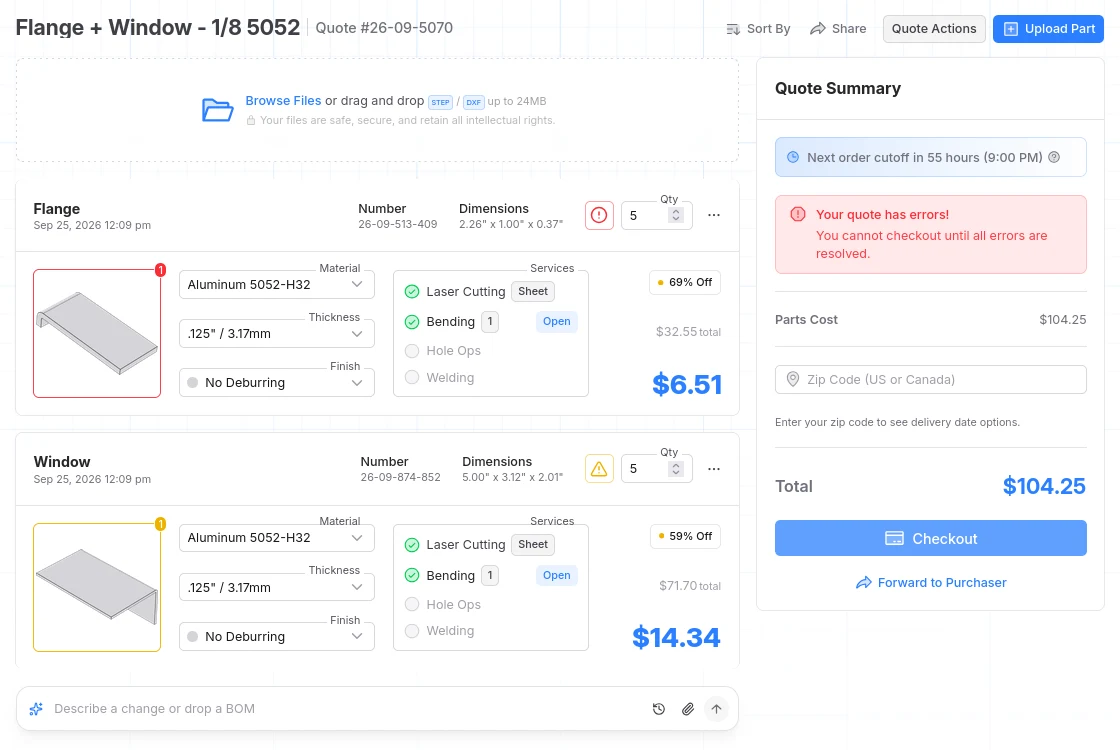
- Flange, error. The flange on its 90° bend is 0.375", and the minimum bend length for this material, thickness, and tooling is 0.500". An error blocks checkout, so this part can't be ordered as drawn.
- Window, warning. A cutout sits 0.233" from the bend, inside the 0.375" distortion zone where the metal deforms as it bends. The part can still be ordered, but the cutout will distort unless it moves at least 0.142" further away or the bend changes.
The agent doesn't invent these results. They are the same errors and warnings the quote page shows, with the exact measurements. The agent's job is to explain them, say which ones block an order, and tell you what to change.
Open the same quote in Fabworks and you see the same result: an error on the Flange, a warning on the Window, and checkout blocked until the error is fixed.
Fix the Model, Then Check Again
Both fixes took a minute in CAD.
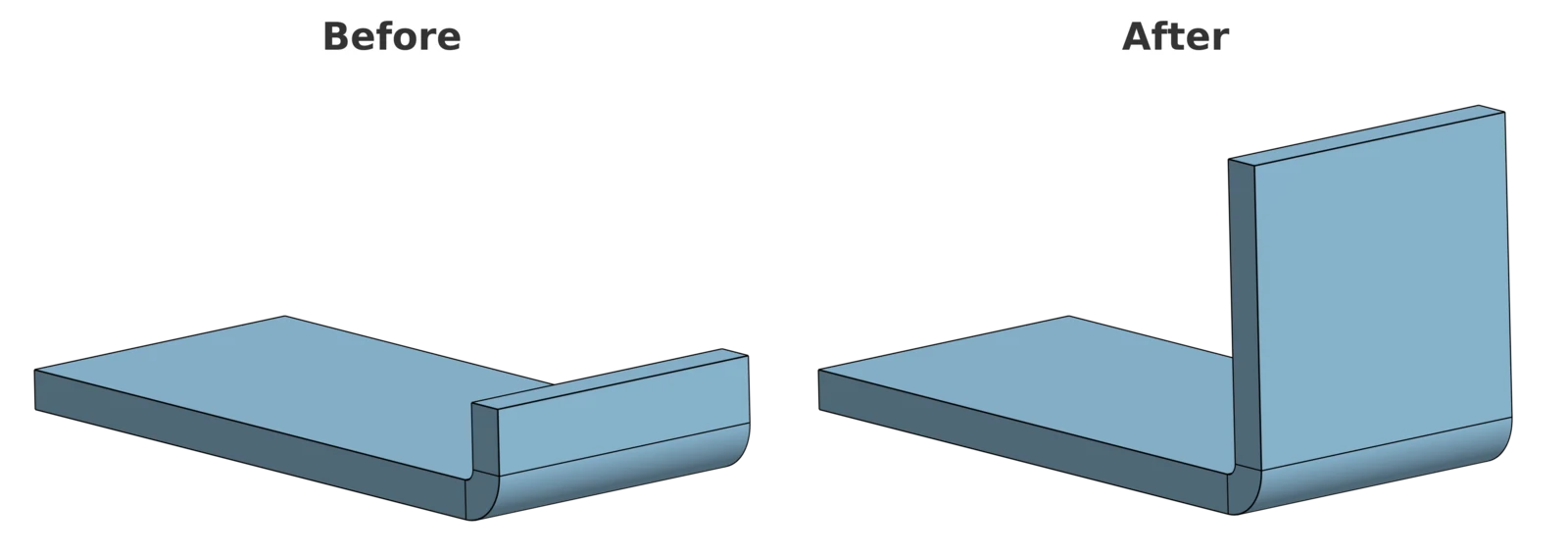
For the Flange, the short leg was lengthened from 0.375" to 1.125", well past the 0.500" minimum:
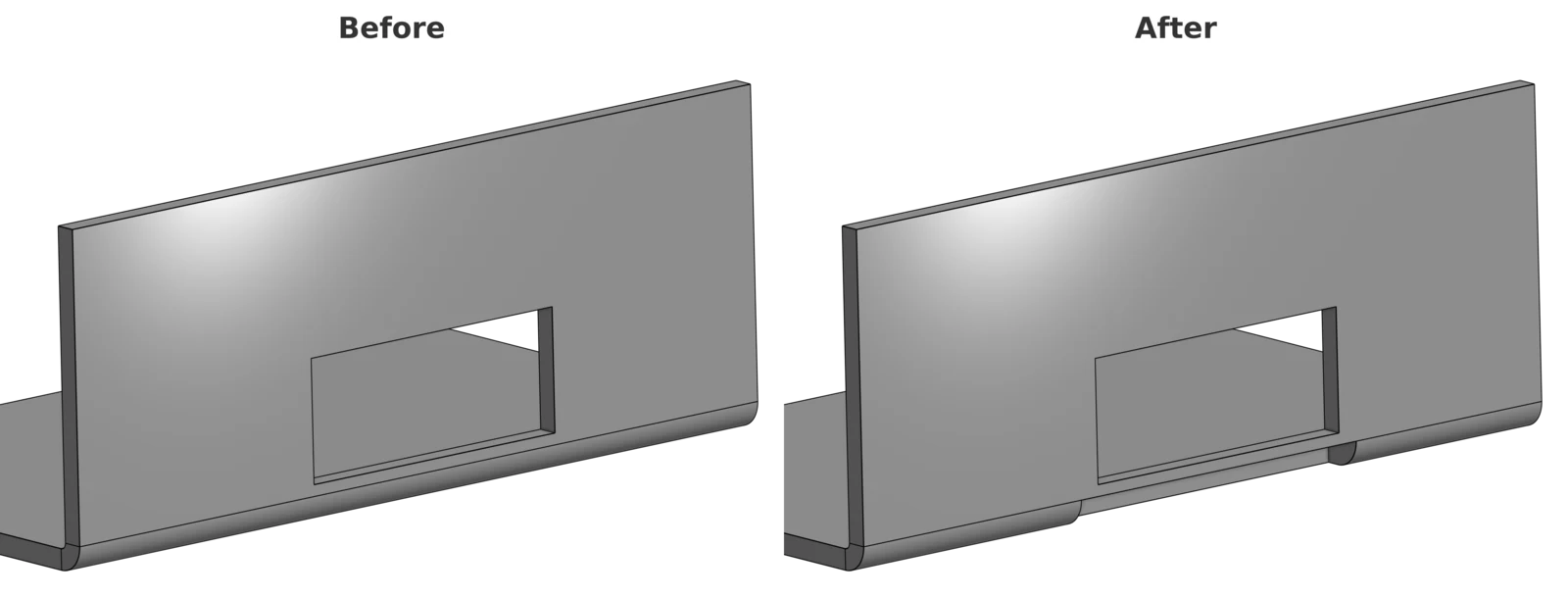
For the Window, moving the cutout would have changed the design, so the bend was removed under the window instead. The bend now stops on either side of the cutout, and the metal next to the window isn't formed, so it has nothing to deform:
After re-exporting both STEP files, the same prompt runs again on the updated folder:

This time neither part has an error or a warning. The agent confirms each flange is above the 0.5" minimum and that no cutouts sit in the distortion zone. It also returns prices at both quantities and a quote link. Nothing is ordered until you open that link and check out.
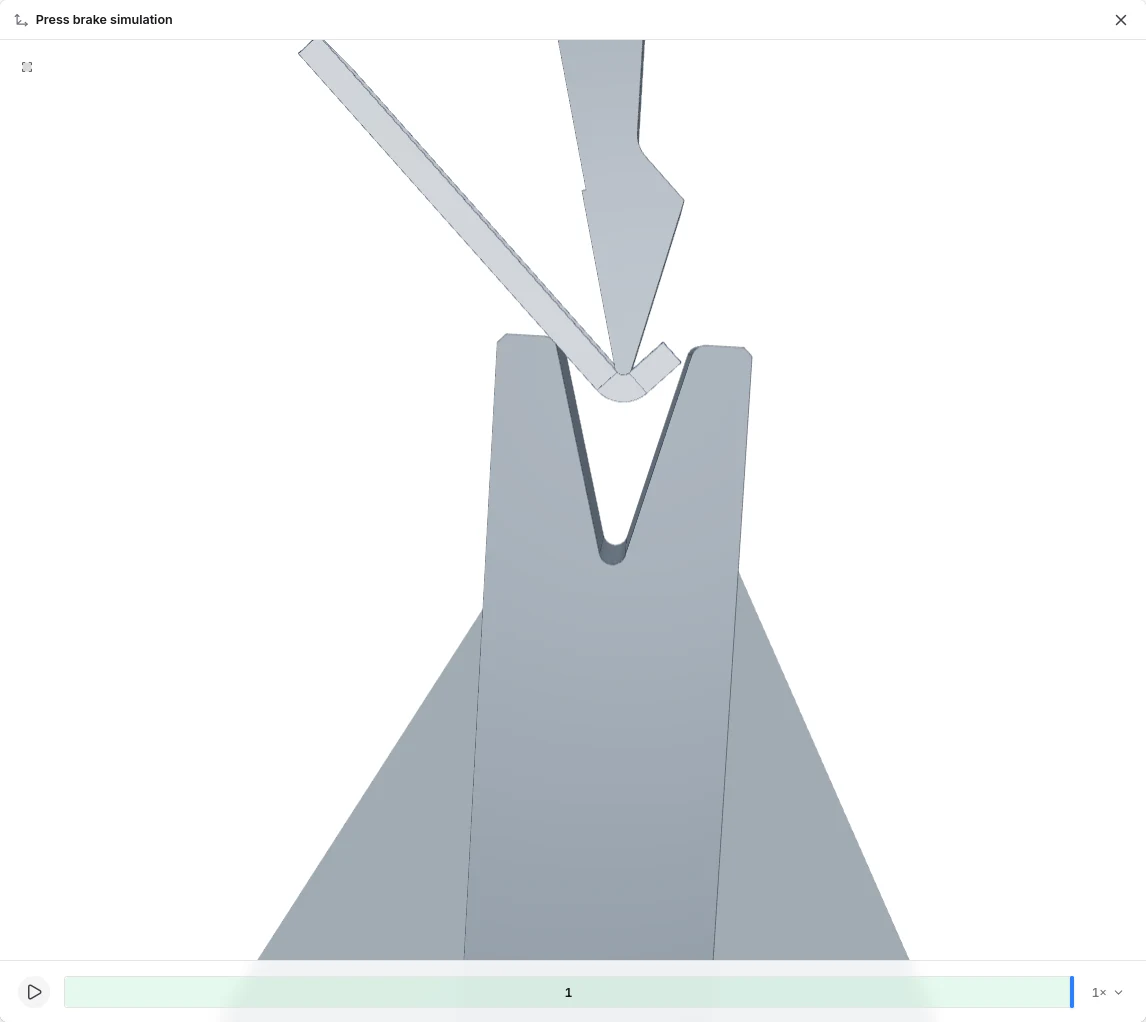
Before ordering bent parts, open the bending view on the quote page too. The press brake simulation forms each bend against the actual tooling and checks for collisions, which the agent's check doesn't cover:
Checking a Whole Assembly
Two parts are easy to check by hand. The agent is most useful when the folder is a full assembly export: dozens of STEP files, repeated parts, sheet and tube mixed together, and no one wants to open each file.
This run points the agent at a folder of 25 STEP files from one assembly:
Quote the parts in this folder. Assume all parts are aluminum. STEP files with identical geometry should be treated as the same part with a higher quantity.
"Aluminum" isn't a full material spec, so before quoting, the agent stopped and asked which grade to use for the sheet parts. Each option says which thicknesses it covers, and the agent notes that the tubes only come in 6061-T6:

After picking the recommended 6061-T6, the agent quoted the assembly:

In that run, the agent:
- Merged duplicate files. It compared the geometry in each STEP file, found five pairs of identical parts, and quoted each pair once at quantity 2. That's 20 unique parts and 25 pieces.
- Measured each part. It read the thickness of every plate from its STEP file: 0.250" and 0.125" plates in 6061-T6, and a 0.032" cover panel in 5052-H32, because 6061 isn't stocked that thin. It also recognized three parts as 1" × 1" square tube.
- Checked every part. Fabworks returned no DFM errors or warnings across the assembly, so the whole quote can go to checkout.
The same prompt works when parts do fail. Ask the agent to list only the parts with errors, and a 25-file check comes back as a short list of what to fix.
Useful Prompts
Once the agent is connected, a few prompts cover most checks:
Check every STEP file in cad/release/ for manufacturability in 0.125" 5052 aluminum. List only the parts with errors.

Explain the DFM warnings on my latest quote and tell me which ones I can ignore.

I moved the hole on bracket.step. Check it again and tell me if the warning is gone.

Would this part pass in 304 stainless at the same thickness? Show the new DFM results and price.
Make It Part of Your Release Routine
If your repository has a CLAUDE.md or AGENTS.md file, a short note makes the check automatic before a release:
## Sheet metal DFM check

Before tagging a hardware release, check every STEP file in `cad/release/` with the Fabworks
MCP server in the material and thickness listed in `cad/release/README.md`. Report each part's
DFM errors and warnings. Do not change quantities or place an order.
What the Agent Does and Doesn't Do
- It reports real Fabworks results. Errors and warnings come from the same automated checks that run on every Fabworks quote, not from the model's own guesses.
- Every check creates a quote. Each run uploads your files and creates a quote in your Fabworks account, so you'll see one per check in your quote list.
- It doesn't place orders. Checkout happens on the Fabworks quote page, after you review the parts.
- Check the bends on the quote page too. The press brake simulation, which checks each bend for collisions with the tooling, runs in the bending view of the quote page. Open it for bent parts before you order, and see our bending guidelines for the rules it checks against.
- You still decide. Some warnings are fine for your part. The agent explains the trade-off, and you choose whether to change the design.
For the checks worth doing by hand, see our list of checks before ordering and the sheet metal design guide.
Get Started
Connect your agent to Fabworks, point it at a folder of STEP files, and ask it what would stop them from being made. It takes a minute, and it's cheaper than finding out after the parts arrive.
Sheet Metal Welding Design Guide: Setting Up Bent Parts for Welding
How to design bent sheet metal parts for welding. Covers supported materials and thicknesses, how to set up welded corners, choosing full, stitch, tack, or manual welds, and adding welds to your quote.
Rivnut vs PEM Nut
Rivnuts, or rivet nuts, are now available on Fabworks for sheet and tube parts. Here is how to pick the right threaded insert for your part.
Order Sheet Metal Parts
Upload a 2D DXF or 3D STEP file for an instant laser cutting quote. Quote in seconds, order in minutes, receive parts in days.
or drag and drop
STEP / DXF up to 24MB
Your files are safe, secure, and retain all intellectual rights.