Press Brake Simulation: Watch Your Part Bend Before You Order
Tell Google we're a trusted resource.
A part can pass every flange length and bend radius rule and still be impossible to bend. The problem shows up in the order of the bends. Once the first flanges are formed, they have to clear the punch, the die, and the machine while the rest of the part is bent. A return flange that is a little too tall or a channel that is a little too narrow will hit the tooling partway through the stroke.
Most shops find this out when a press brake operator picks up the part. Fabworks now checks it while you quote. Every part quoted with sheet metal bending is simulated on our press brake tooling, and you can watch the whole sequence in 3D before you order. It runs in your browser, with no simulation software to install.
Where to find it
Upload a STEP file with bends and open the quote. Each bent part shows a Bending row with a count of its bends. The dot next to it shows the result of the check:
- Green: we found a bend order that works with our tooling.
- Red: no bend order works. See When a part can't be bent.
- Spinning: the check is still running.
Click Open to watch the simulation.
The check runs on its own as soon as the part has a material, so you don't have to open the simulation to get the result. In the clip above, the Bending dot is already green by the time the price shows up. Open turns on once the check finishes. It stays off for a part with a file problem, such as a model we can't unfold, because that has to be fixed before the part can be simulated.
Watching your part bend
The simulation shows the part between the punch and the die, the way it sits on our press brake. The bar along the bottom has one numbered step for each bend, in the order we would form them.
- Press play to run the full sequence, or click a step to jump to it.
- Drag the marker to scrub through a bend and watch the flange come up.
- Hover a step to highlight its bend line on the part.
- Change the playback speed from the menu on the right.
- Drag to rotate the view, scroll to zoom, and use the reset button in the top-left corner to get back to the starting view.
Green steps pass. A red step collides with the tooling or the machine.
How we pick the bend order
You don't pick a bend order. Our software searches the possible orders for one where every bend clears our tooling, then plays that order back. For a part with a handful of bends, the search usually finishes before you get to the Bending row. While it is still running, the Bending dot spins and Open waits for the result.
The simulation uses the tooling we bend with, not a generic press brake, so a green result means the part fits our setup. It checks the part's geometry, not its tolerances. The bending guidelines still cover minimum flange length, bend radius, and tolerances.
When a part can't be bent
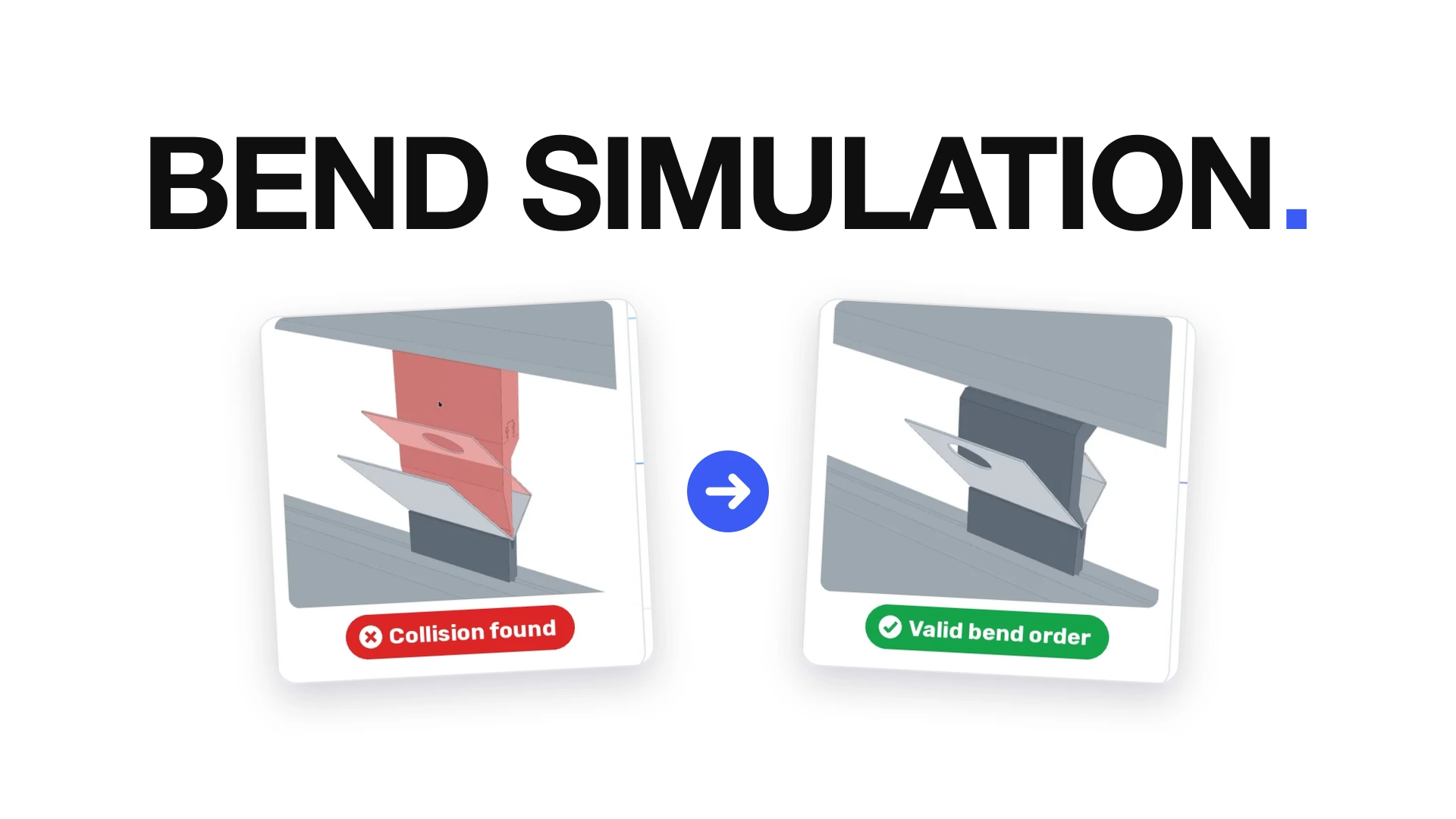
If every bend order hits something, the simulation plays the closest order it found. The failing step turns red, along with the part and the tooling that collide.
In this part, the first bend passes. During the second bend, the part swings up into the punch. No order avoids it, so the simulation shows No bend order works.
If the search runs out of time before checking every order, you'll see No bend order found instead. A working order may still exist, and the Support button opens a chat with our team so we can look at it.
Either way, the quote shows a warning on the part. You can still check out, but the warning might delay your order. It is usually faster to fix the design first.
How to fix a collision
Most collisions come from a flange that can't clear the tooling as the next bend forms. These changes usually fix it:
- Shorten the return flange. A shorter flange swings through a smaller arc and clears the punch. The reverse bend clearance checker shows how tall a return flange can be for a given channel width.
- Widen the channel. A wider channel gives the punch more room between the flanges.
- Make the box shallower. For four-sided boxes, the box depth calculator shows the deepest box our tooling can form.
- Split the part. Two simpler parts joined with welding or hardware can replace one part that can't be bent.
Change the CAD, export a new STEP file, and upload it again. The new part is checked as soon as it is quoted.
Here is the part from above after the fix. The flange with the hole stayed the same. The flange on the other side has no features on it and could have been a separate part, so instead of splitting the part we shortened that flange by 0.44" (12.00" down to 11.56" overall). The Bending row on the quote turns from red to green, and both bends clear the punch in the simulation.

For AI agents
If you quote through the Fabworks MCP server, bent parts come back with a bending_url
that opens this simulation. Add &step=N to hold it after step N. An agent with a browser can
screenshot a specific bend and show you where a part fails. The
MCP docs have the details.
Try it on your part
Upload a STEP file with bends and open the Bending row on the quote. If the simulation shows something you don't expect, click Support or start a chat and we'll take a look.
Order Sheet Metal Parts
Upload a 2D DXF or 3D STEP file for an instant laser cutting quote. Quote in seconds, order in minutes, receive parts in days.
or drag and drop
STEP / DXF up to 24MB
Your files are safe, secure, and retain all intellectual rights.